CheckStationby SmartFACT

CHECKSTATION · EARLY ACCESS

What is final inspection software?

Updated

Final inspection software tells the inspector which checks a finished unit needs, records each reading against its approved limit, and keeps the result with the unit's record. CheckStation does this for individually identified units: the inspector scans the unit at a handheld or scan station, approved rules select its checks, and each manual reading is compared exactly with its limit.

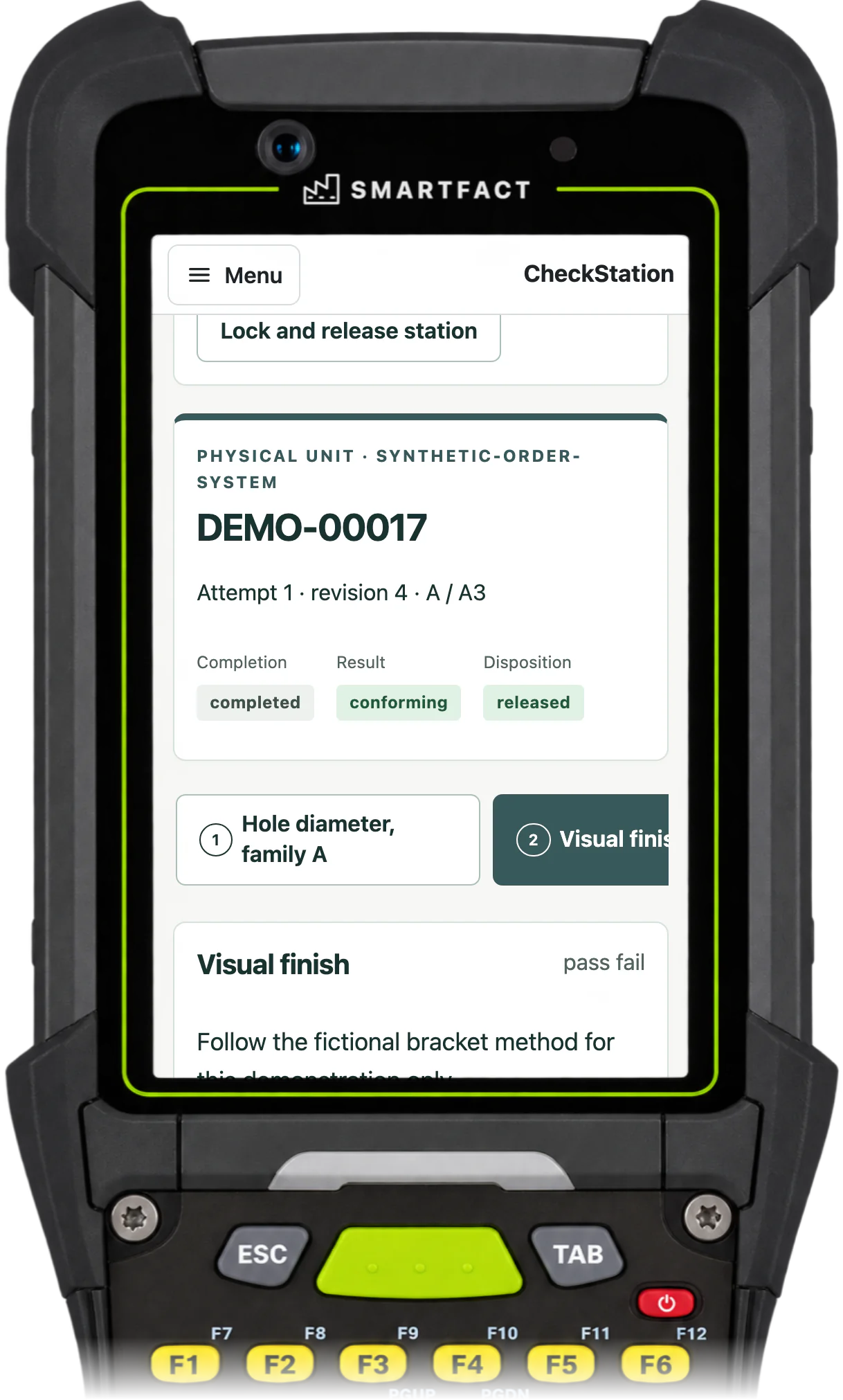
CheckStation inspection station showing unit DEMO-00017 completed, with a conforming result and a released disposition
Completion, result and release shown separately for one unit, on a handheld or scan station.

How are the checks chosen for each unit?

The inspector scans or enters the unit's identifier, and CheckStation looks up the registered unit and its order details. The approved plan for its product family and drawing revision supplies the base checks. Approved rules then add checks, or require a supervisor's release, according to the unit's supplier status, customer group or finish.

Before starting, the inspector reviews the unit, order, drawing and selected checks against the physical work and confirms the unit in front of them. Missing details or conflicting requirements stop the selection, so nothing is guessed.
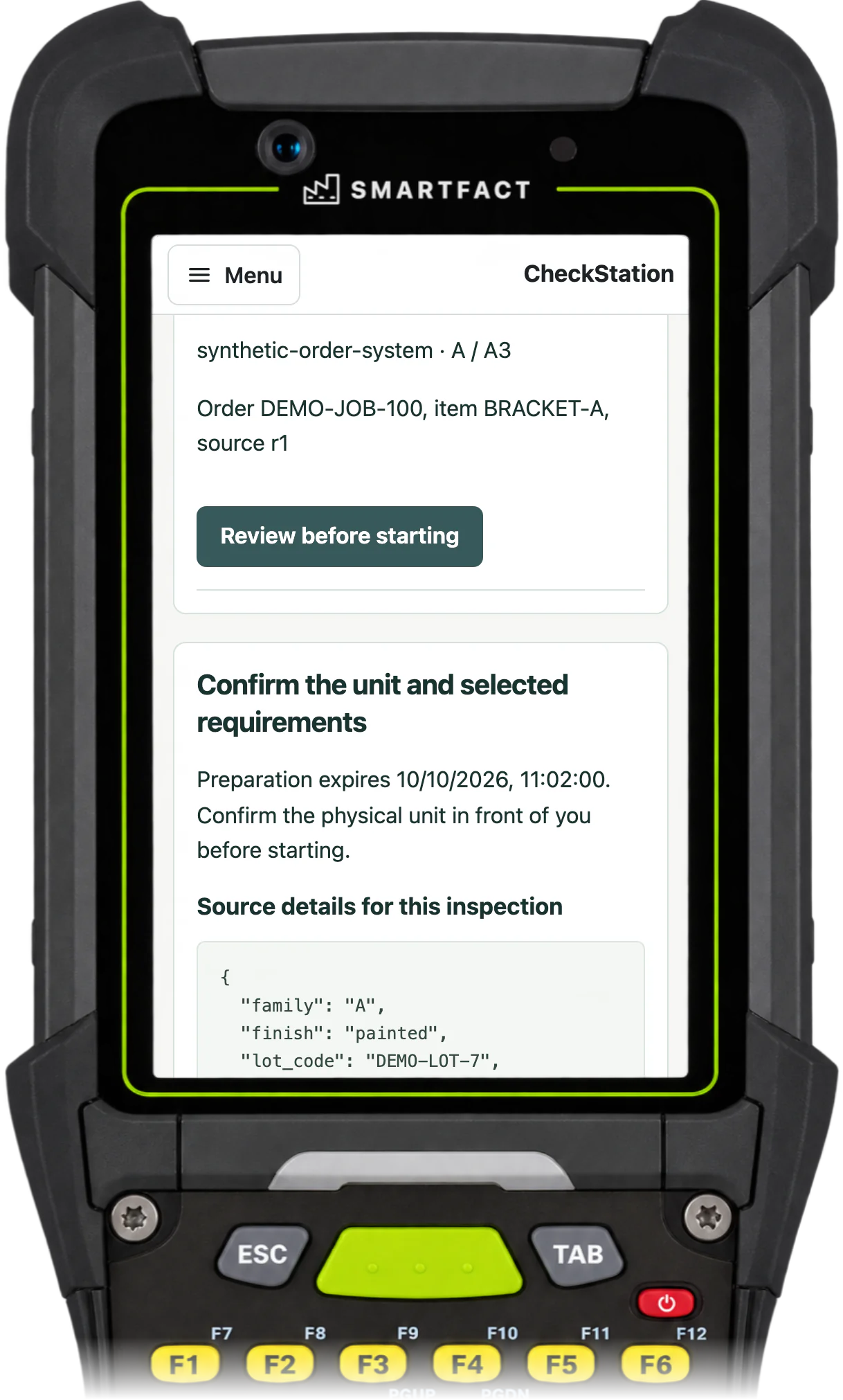
CheckStation station asking the inspector to confirm the unit and its selected requirements, with the unit's source details below
Confirming the physical unit before the inspection starts, on a handheld or scan station.

How is a reading recorded?

Each check shows the unit and precision it expects, and why it applies. The inspector enters the actual reading by hand, and CheckStation compares the exact decimal with the approved limits before any rounding for display. A reading of 10.1000 mm against an upper limit of 10.10 mm conforms; 10.1001 mm does not.

Visual checks are recorded as an observation against the approved method, such as pass or fail for a finish.
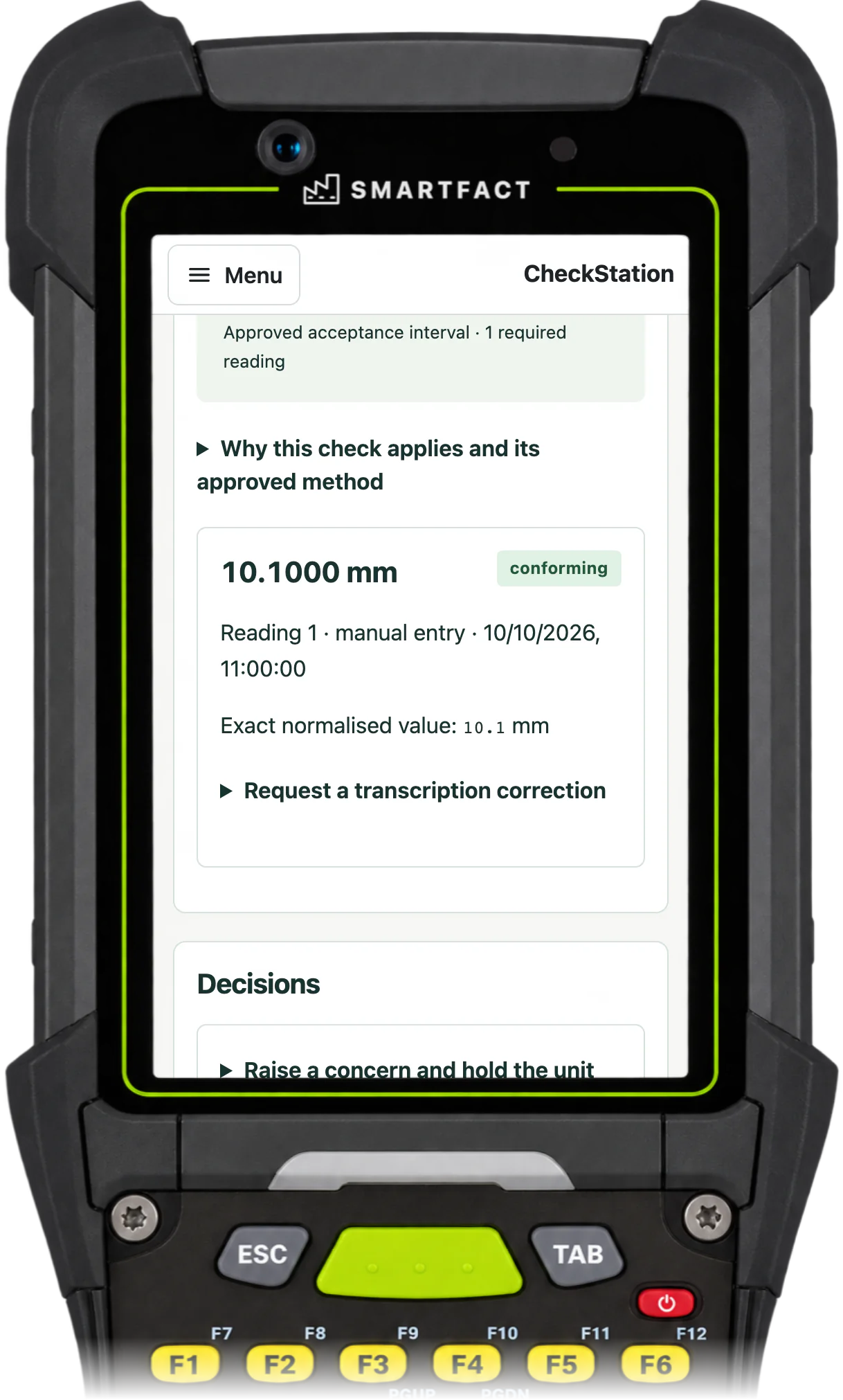
CheckStation station showing a recorded reading of 10.1000 mm marked conforming, with its exact normalised value
A recorded reading and its result, on a handheld or scan station.

What if a reading is entered wrongly?

An entry that is not a valid reading is refused before anything is saved. A comma as the decimal separator, more decimal places than the check allows or a reading in another unit is refused, and the inspector enters the actual reading again.

A refused entry is not a failed reading. A valid reading outside its limit is recorded as a failure, and the unit is held.
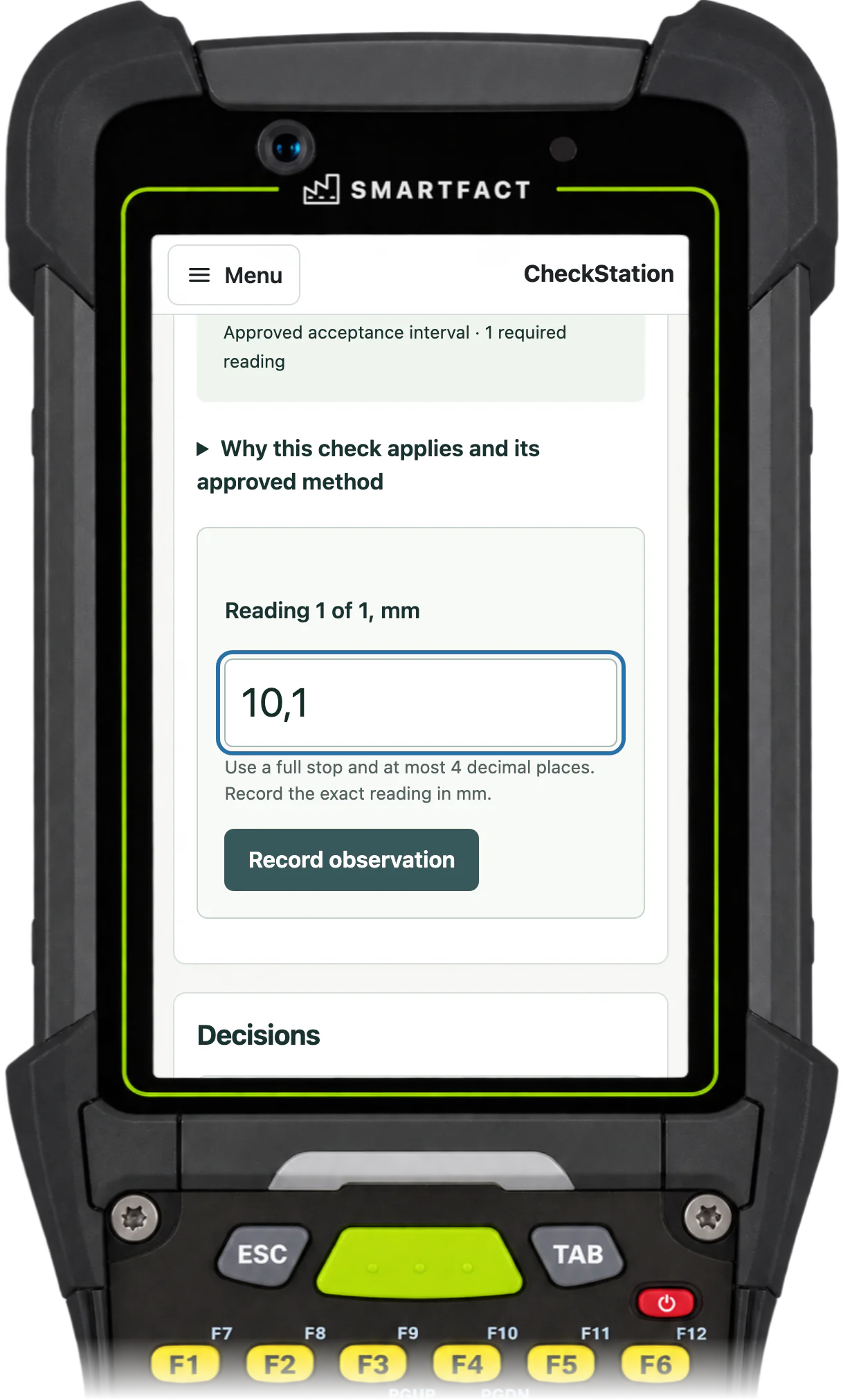
CheckStation station with 10,1 typed for Reading 1 of 1, mm, under the hint to use a full stop and at most 4 decimal places
A comma typed as the decimal separator, which the station refuses, on a handheld or scan station.

When is an inspection complete?

An inspection can be completed once every required observation is present. Completion, result and release are separate facts: a completed inspection can still be nonconforming, and a failed check keeps the unit held after completion.

When every result conforms, no hold remains and no rule requires a supervisor, completing the inspection releases the unit. Otherwise a supervisor releases it separately, with a reason.
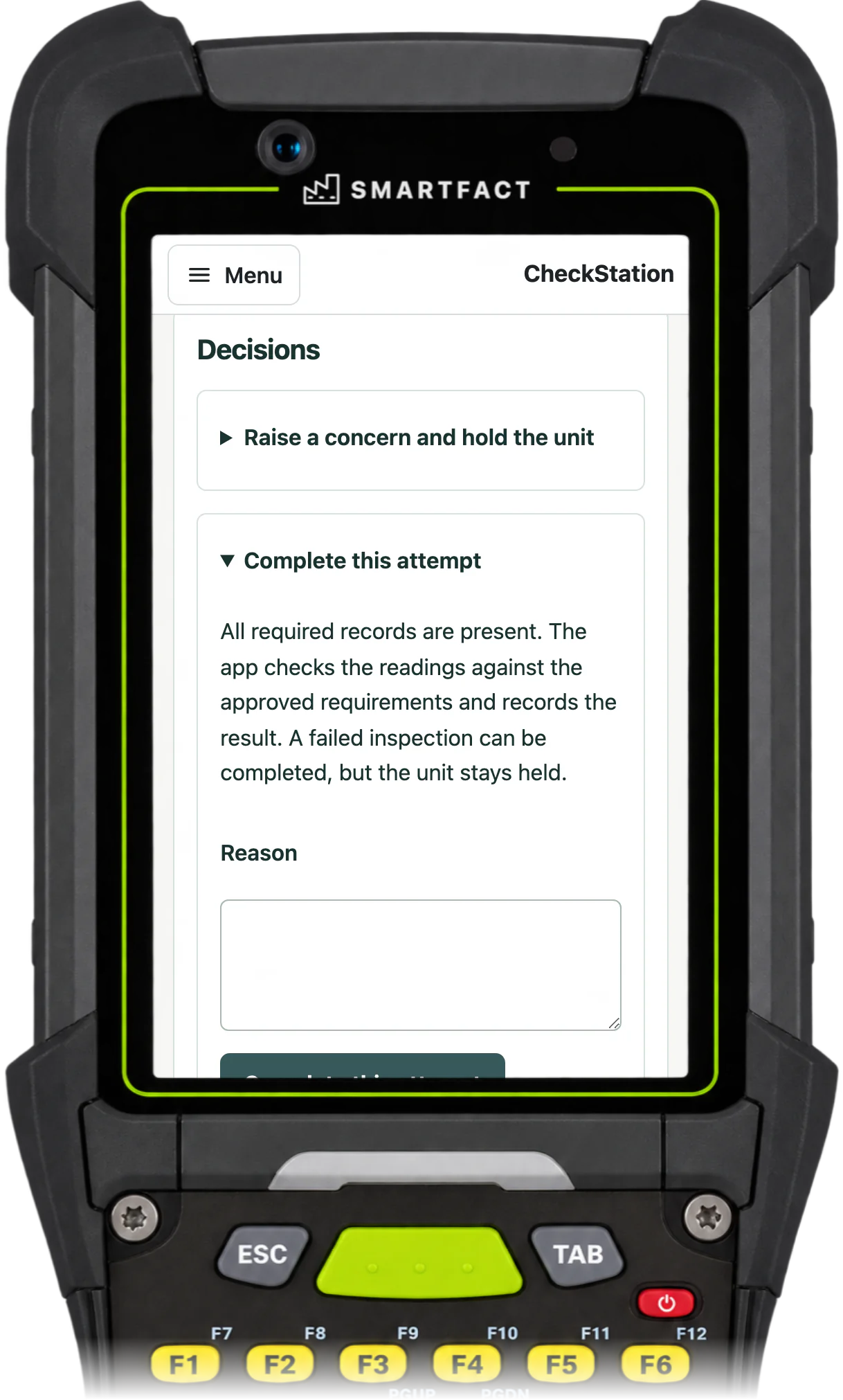
CheckStation station showing the completion panel: all required records are present, and a failed inspection can be completed but the unit stays held
Completing the inspection, with the hold rule stated, on a handheld or scan station.

What is kept in the record?

The record keeps the unit's source details, the approved plan it was inspected against and every observation with its exact value. Holds, corrections, retests, rejection and release are added as decisions with their reasons.

Corrections and retests add to the record. The original observation always stays visible.
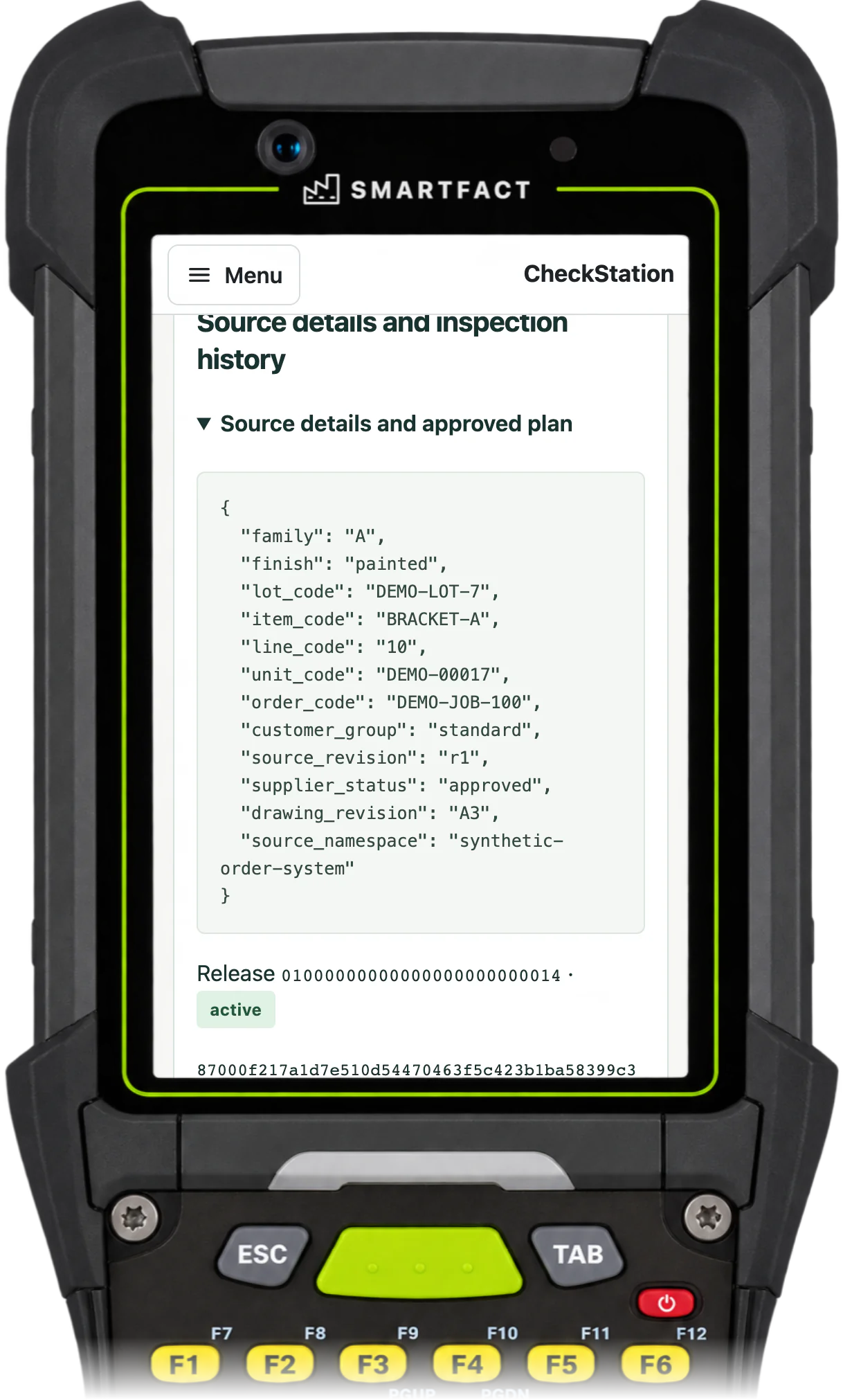
CheckStation record showing the unit's saved source details, including family, finish, customer group, supplier status and drawing revision
The source details and approved plan kept with the record, on a handheld or scan station.

What CheckStation does not do

  • Sampling or lot release. Each inspection covers one identified unit, and a passing unit does not release its lot.
  • Concessions.
  • Live instrument connections. Readings are entered by hand in the unit shown.
  • Offline inspection.
  • Machine interlocks.
  • Stock or despatch actions. A quality release records an authorisation on the unit; it does not move stock or authorise despatch.

Common questions

What is final inspection?

Final inspection is the last check of a finished product before it is released: the inspector confirms that it meets its approved requirements, such as dimensions and finish, and records the result.

Does AI decide whether a part passes?

No. The approved plan and an exact numerical comparison decide the result. Your team supplies the engineering limits and methods, and the inspector records each observation. No AI model is called during an inspection.

Does one passing unit release its lot?

No. Each inspection concerns one identified unit. Job and lot references are recorded as context, and CheckStation includes neither sampling nor lot acceptance.

Early access starts with an agreed workflow. Supported scope and onboarding arrangements are confirmed with you.

EARLY ACCESS

Which inspection requirements are hardest to keep current?

Describe one inspection family and how its checks change. We review the fit and contact you about early access and onboarding. This form creates no account and starts no trial.

Request early access

Start with your workflow. No payment.

THE SMARTFACT SUITE

Useful on their own.
Better around the same floor.

Automate factory decisions with rules you describe in plain English. Explore focused SmartFACT services, plus free tools for everyday checks.

Free tool

ScannerBench

See the text and key events your keyboard scanner sends. Compare them with the value you expected.

Test a scanner
Free tool

PrintBench

Print a known PDF, measure its reference marks and compare scans from the printed codes.

Check a print
Free tool

CardBench

Create 100 × 50 mm bin and rack cards with Code 128 or QR, from one record or a CSV.

Make bin cards
Free tool

CountBench

Count stock by location with a barcode scanner, compare it with a stock file and export the results. No account needed.

Start a free count
Free tool

BarcodeBench

See exactly what a scanned barcode contains, with hidden characters shown and GS1 fields, check digits and dates explained. No account needed.

Inspect a barcode
Free tool

MatchBench

Scan a reference and each label, see an exact match or the first difference, and download the results. No account needed.

Start a free comparison
Free tool

TagBench

Scan an item or location, note what needs attention, print a review tag and keep a review list. No account needed.

Make a free tag
Free tool

FindBench

Load your own parts and locations CSV, scan a code and see every location it lists. No account needed.

Start a free lookup
Free tool

ManifestBench

Check cartons, pallets or serial numbers against a list with a phone or scanner and see what is missing. No account needed.

Start a free check
Free tool

FeedBench

Check CSV and JSON files exactly as written, preview a column mapping and compare two versions by key. No account needed.

Check a file free
Free tool

CycleBench

Time work cycles and changeovers on a phone, record interruptions with reasons and download the results. No account needed.

Start a free study
Early access

LabelRules

Describe label rules in plain English. Automatically select layouts, resolve customer codes and check each job before printing.

Explore LabelRules
Early access

KitProof

Turn plain English component rules into automatic kit checklists, then check scans against the expected parts and quantities.

Explore KitProof
Early access

WorkSteps

Turn plain English rules into automatic step selection for each unit, with required evidence and a record of completed work.

Explore WorkSteps
Early access

FactorySpec

Apply approved product rules and calculations automatically to turn dimensions and options into manufacturing requirements.

Explore FactorySpec
Early access

ConfigSheets

Maintain checked reference tables and saved versions, then prepare reviewed files for LabelRules and KitProof.

Explore ConfigSheets
Early access

OrderRun

Turn plain English rules into automatic order checks and destination selection, with controlled production release.

Explore OrderRun
Early access

ParcelOffice

Scan the work order and the parcel choice to book the courier and print the labels. Approved plain English rules recommend or choose the parcel.

Explore ParcelOffice
Early access

RefillFlow

Scan an empty container to send the right refill request to stores. Approved plain English rules set the stores queue, priority, ticket printer and escalation.

Explore RefillFlow
Early access

RemnantRack

Label each offcut, find a suitable length before cutting new stock and record what you used. Approved plain English rules decide what to keep and where it goes.

Explore RemnantRack
Invited trial

ToolCustody

Check a shared tool before handover, record who has it and keep damaged or overdue tools out of the next issue. Explore an invited trial for one factory crib.

Explore ToolCustody
Invited trial

StoresFlow

Receive, put away, reserve and issue stores material with barcode checks, keeping held, reserved and available stock apart. Explore an invited trial for one stockroom.

Explore StoresFlow
Invited trial

LotTrail

Follow a lot or serial number through the records your factory already keeps, with the source of each link and the gaps shown. Explore an invited trial with two declared sources.

Explore LotTrail
Early access

CheckStation

Scan an identified unit to get its approved final-inspection checks, then record exact readings with their result, holds and release history.

Request early access
Help

SmartFACT Help

Step-by-step guides and interactive demonstrations for the SmartFACT suite. Read the instructions, watch a task or practise with real product screens and sample data.

Open SmartFACT Help